
How to track API usage by team, employee, or agent
If you need to monitor costs and usage for a specific task, employee, or agent, you can create a dedicated API key for that purpose.
As an example, let’s create a key for tracking Claude Code usage.
Go to the API Keys section, open the API Keys tab, and click Create API Key.
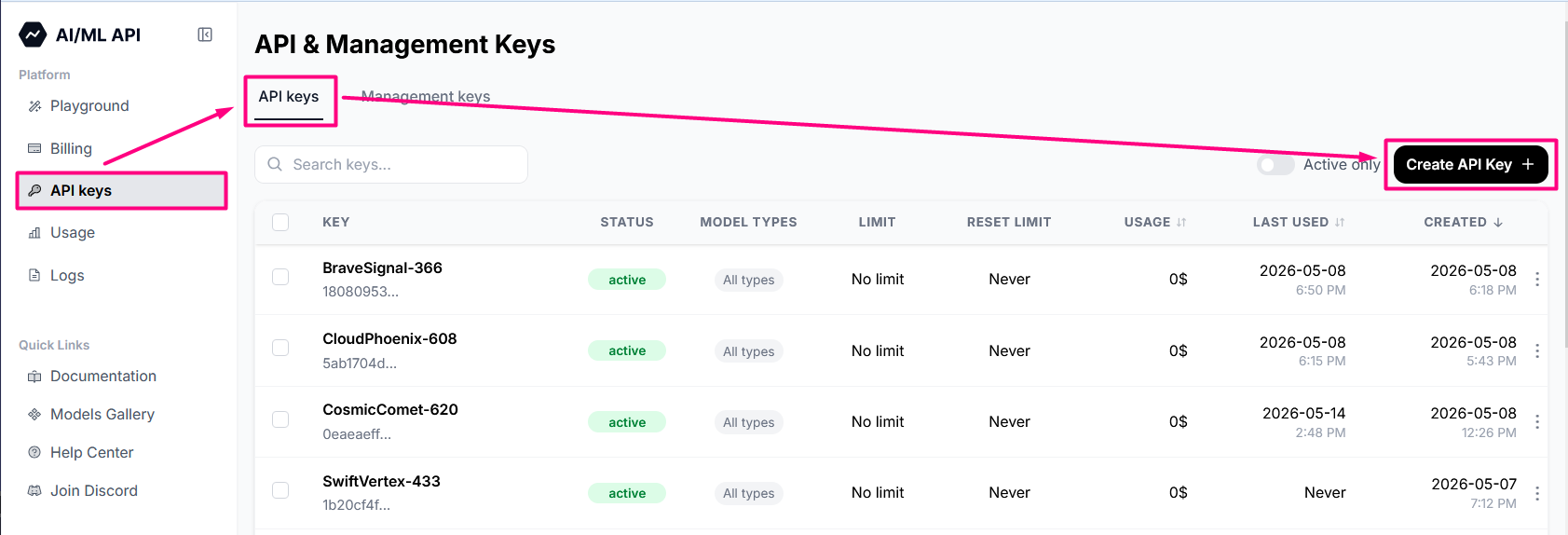
It is recommended to use a descriptive key name to simplify tracking and reporting. You can name the key something like John (R&D) — Claude Code, indicating that the key is assigned to John from the R&D team for Claude Code-related work.
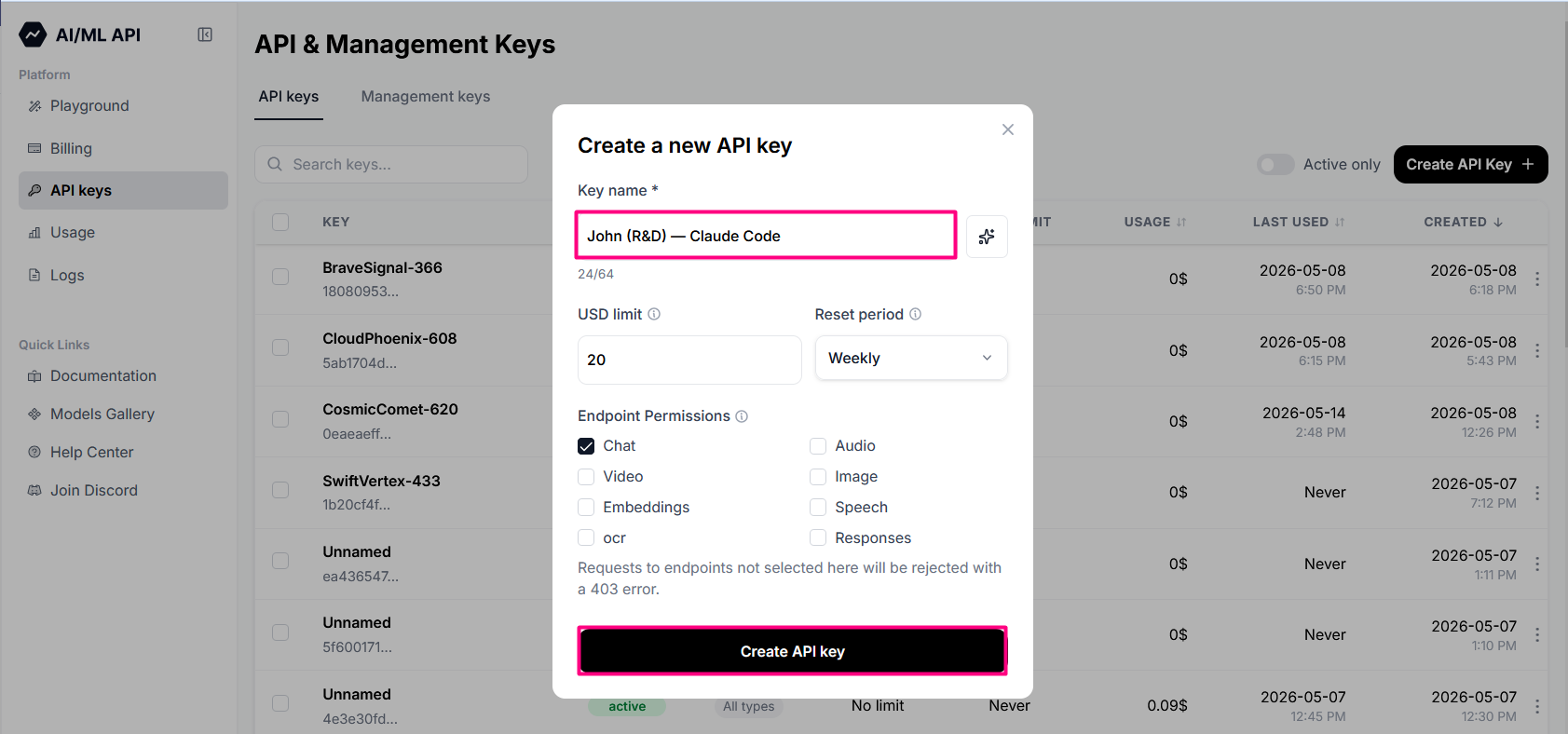
In the dialog that appears, make sure to copy the key or save it as a file — it will not be shown again.
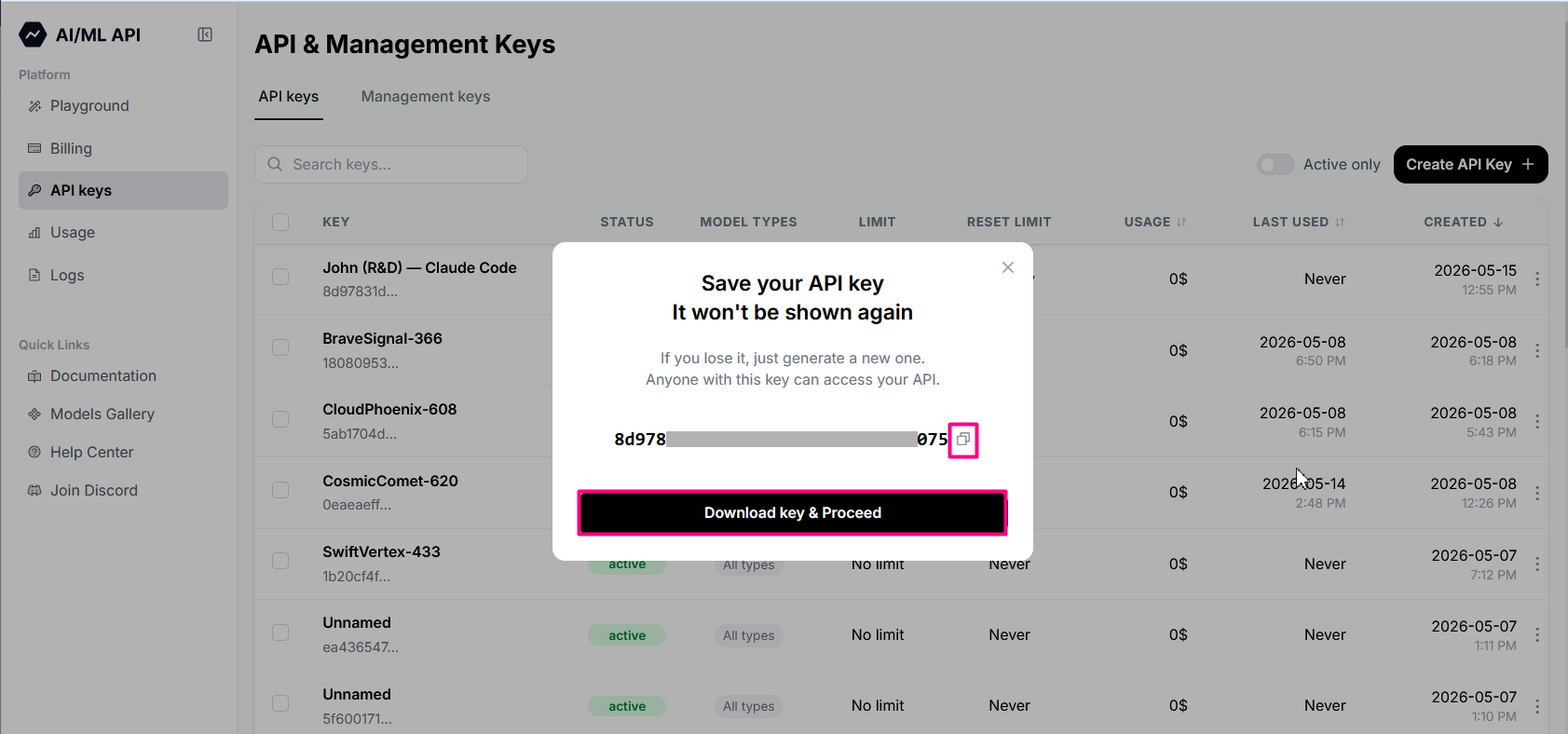
Share the key with John through a secure channel.
You can now view token usage details and corresponding USD costs for John’s Claude Code key in the Usage section of the dashboard as soon as the key is used.
Use the filters panel at the top to filter by API key, specify the key you want to inspect, and select the desired date range.
The system will display a complete list of requests matching your filters, including token usage and cost in USD for each request.